



![图片[1]-简单几步解决Github无法访问的问题-创信博客](https://blog.cxinyun.cn/wp-content/uploads/2022/04/1649082017-00907a39c32c518.jpg)
话不多说直接开始教程:
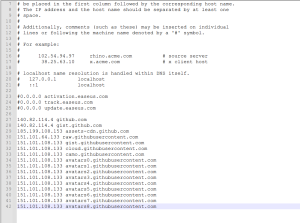
1.打开C:\Windows\System32\drivers\etc 路径下的的hosts文件
在hosts文件内加上如下内容并保存
140.82.114.4 github.com
140.82.114.4 gist.github.com
185.199.108.153 assets-cdn.github.com
151.101.64.133 raw.githubusercontent.com
151.101.108.133 gist.githubusercontent.com
151.101.108.133 cloud.githubusercontent.com
151.101.108.133 camo.githubusercontent.com
151.101.108.133 avatars0.githubusercontent.com
151.101.108.133 avatars1.githubusercontent.com
151.101.108.133 avatars2.githubusercontent.com
151.101.108.133 avatars3.githubusercontent.com
151.101.108.133 avatars4.githubusercontent.com
151.101.108.133 avatars5.githubusercontent.com
151.101.108.133 avatars6.githubusercontent.com
151.101.108.133 avatars7.githubusercontent.com
151.101.108.133 avatars8.githubusercontent.com
![图片[2]-简单几步解决Github无法访问的问题-创信博客](https://blog.cxinyun.cn/wp-content/uploads/2022/04/1649082251-9ea6c4b04daf2b3.png)
如果无法编辑,鼠标右键打开文件属性将“只读”取消勾选并应用保存
![图片[3]-简单几步解决Github无法访问的问题-创信博客](https://blog.cxinyun.cn/wp-content/uploads/2022/04/1649082334-5546af5108594ad.png)
Win+R打开运行框,输入cmd打开命令窗口,输入ipconfig/flushdns命令会提示以下信息
![图片[4]-简单几步解决Github无法访问的问题-创信博客](https://blog.cxinyun.cn/wp-content/uploads/2022/04/1649082474-abf4186b7034def.png)
然后就可以愉快的访问Github了!
© 版权声明
THE END



暂无评论内容